How to Use Numeric Transformations and the Tool Options Bar
The Tool Options Bar in DRAWings PRO XII allows you to make precise changes to your design using numeric values. This floating bar appears at the top of the design area whenever an object is selected, providing specific controls relevant to that selection.
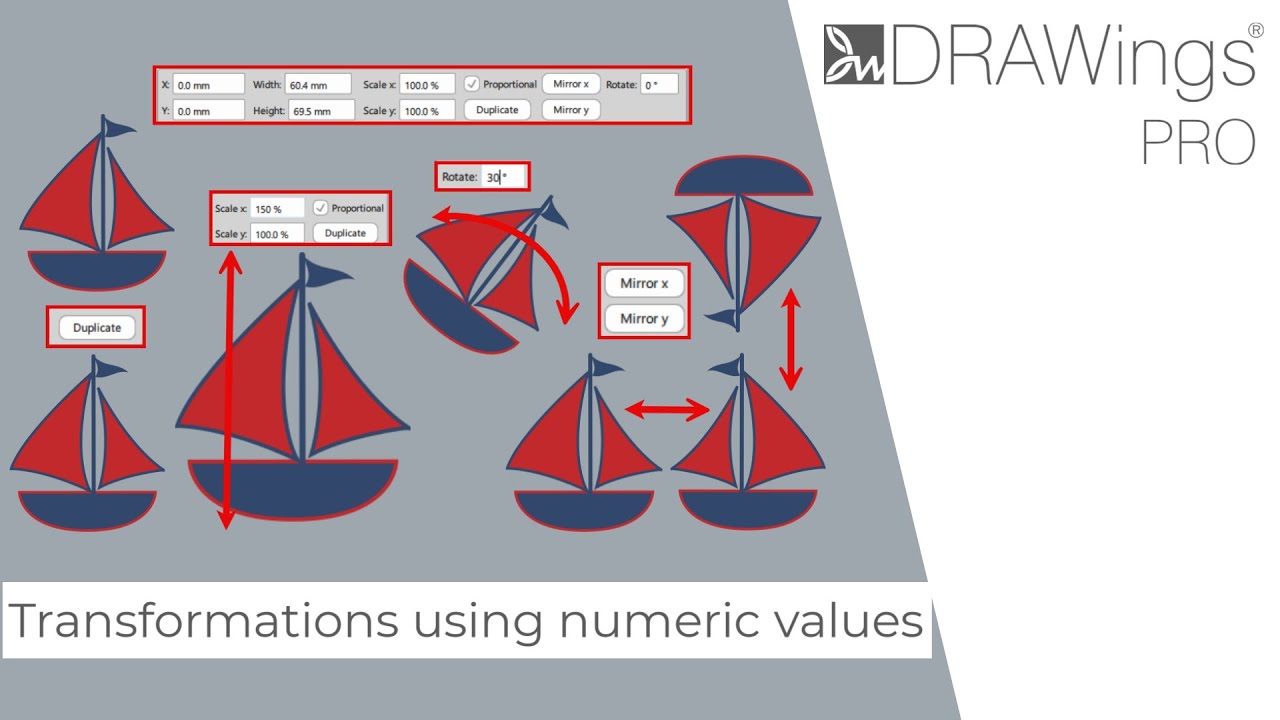
This guide covers how to position, resize, and transform objects using these controls.
1. Positioning Objects with Coordinates
You can place an object in an exact position within the hoop by managing its horizontal (X) and vertical (Y) coordinates.
- Select the object you wish to move.
- Locate the coordinate fields on the Tool options bar.
- Type the desired value for the horizontal or vertical position.
- Press Enter to apply the change.
Note: The positioning is based on the center of the object.
2. Resizing Objects (Width and Height)
You can view and change the exact dimensions of a selected object using the sizing options.
- Select the object.
- Enter a new value in the Width or Height fields.
- Proportional Sizing: By default, the “Proportional” option is enabled. If you change the width, the height will automatically adjust to maintain the object’s aspect ratio.
- Non-Proportional Sizing: To stretch or squash an object (e.g., changing a 50×100 object to 50×50), uncheck the Proportional option. You can now scale each dimension individually.
3. Scaling by Percentage
If you prefer to resize an object by a specific percentage rather than a specific measurement:
- Locate the percentage fields (next to the dimension fields).
- Enter the percentage you wish to scale by (e.g., 50%).
- If Proportional is checked, both width and height will scale by that percentage.
- If Proportional is unchecked, you can scale the width percentage and height percentage independently.
4. Duplicating Objects
To create a quick copy of your design without using standard copy/paste shortcuts:
- Click the Duplicate button on the Tool options bar.
- An exact copy will be created directly on top of the original object.
5. Mirroring and Rotating
The bar provides quick access to geometric transformations:
- Mirroring: Click Mirror X to flip the object horizontally or Mirror Y to flip it vertically.
- Rotation: Enter a specific value in degrees (e.g., 30) into the rotation field to rotate the object.
6. Context-Specific Options
The Tool options bar is dynamic and changes based on what you have selected.
- Readymade Shapes: If you select a specific shape, you will see additional properties specific to editing that shape.
- Text: When a text object is selected, the bar will display text-editing options (font, spacing, etc.).
Tip: Always check the Tool options bar after making a selection, as the available options will vary depending on the object type or the operation being performed.
DRAWings PRO Help Group
Happy crafting and don’t forget to share your creations with us in the
DRAWings PRO Help Group!
Related posts




Projects
How to Modify Built-In Fonts into Custom Designs: Dripping Halloween Lettering
Every embroidery program ships with fonts that are already digitized. They stitch cleanly, and they are also the same fonts everyone else has.Digitizing a Knockout Layered Varsity Monogram with Nested Script Lettering
Layering script text over a bold collegiate letter is a staple in team apparel, varsity jackets, and custom fleece.How to Embroider a Photo onto a T-Shirt with PaintStitch™ and Sketch
A favorite vacation photo does not have to stay on your phone or disappear into a folder. With DRAWings PRO embroidery software, you can turn a photo into an embroidery design and stitch it onto a T-shirt as a wearable keepsake.