How to Find Your Software Key Tool (macOS) and Activate Your Key
This tutorial will guide you through the process of locating the “SoftwareKey” application within your DRAWings PRO installation and activating your software using your Serial Number and Activation Code.
Step 1: Open the “Applications” Folder
Navigate to your “Applications” folder in Finder. You can do this by clicking on the Finder icon in your Dock, then selecting “Applications” from the sidebar.
Step 2: Show Package Contents of “DRAWings.app”
- Locate the “DRAWings.app” icon within your “Applications” folder.
- Right-click (or Control-click) on the “DRAWings.app” icon.
- From the context menu that appears, select “Show Package Contents“.
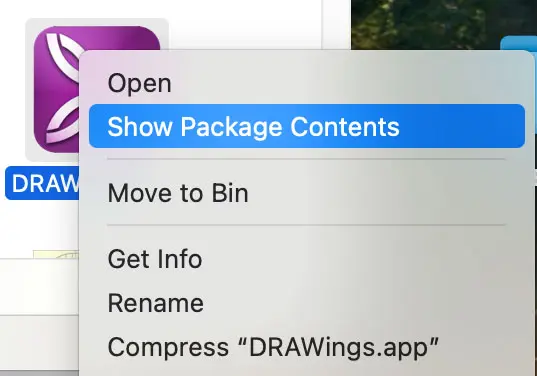
Step 3: Locate the “SoftwareKey” Application
- A new window will open displaying the contents of the “DRAWings.app” package.
- Double-click on the “Contents” folder to open it.
- Inside the “Contents” folder, double-click on the “Library” folder.
- Inside the “Library” folder, double-click on the “LoginItems” folder.
- You will now see the “SoftwareKey.app” application within the “LoginItems” folder.
Step 4: Open and Show “SoftwareKey”
- Click on the “SoftwareKey” application to launch it.
- The “SoftwareKey” icon will appear in the right-top area of your screen (typically in the menu bar).
- Click on the “SoftwareKey” icon in the menu bar, and from the dropdown menu, select the option “Show.”
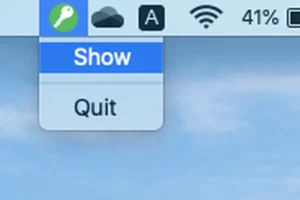
Step 5: Activate Your Key
- The “SoftwareKey” activation window will now be displayed.
- Enter your Serial Number into the “Serial number” field.
- Enter your Activation Code into the “Activation code” field.
- Click the [Activate] button to complete the activation process.
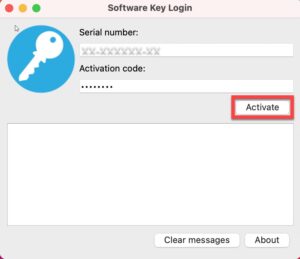
Your DRAWings PRO software should now be activated!
Try to runt DRAWings PRO embroidery software to check if it loads normally.
If you encounter any issues, please contact our support team.
DRAWings PRO Help Group
Happy crafting and don’t forget to share your creations with us in the
DRAWings PRO Help Group!
Related posts




Projects
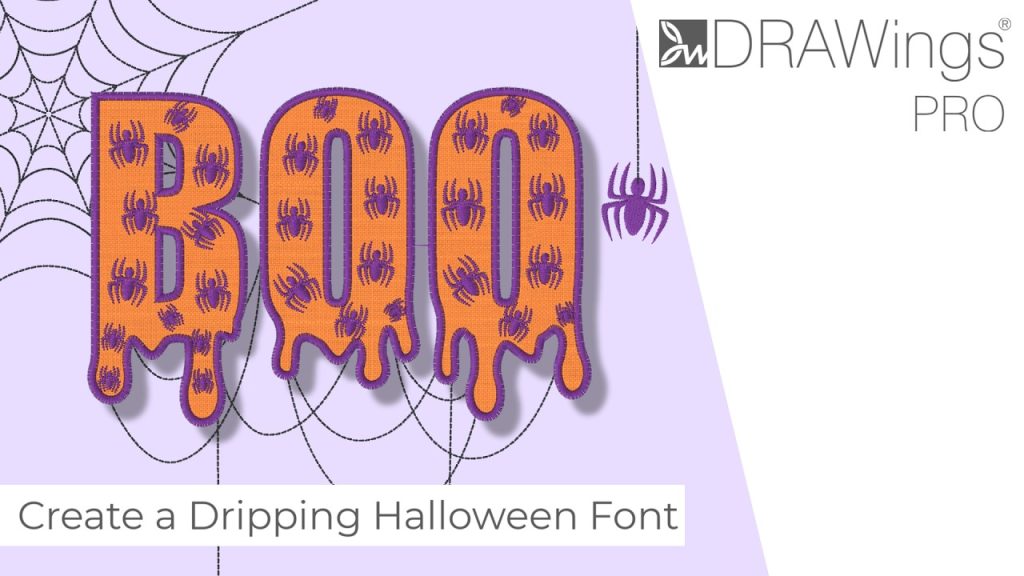
How to Modify Built-In Fonts into Custom Designs: Dripping Halloween Lettering
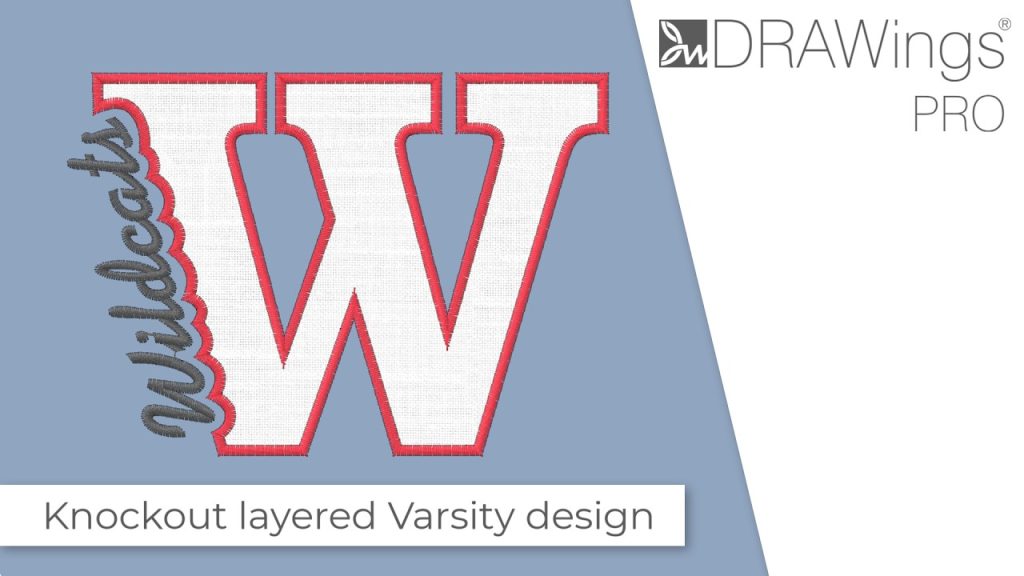
Every embroidery program ships with fonts that are already digitized. They stitch cleanly, and they are also the same fonts everyone else has.Digitizing a Knockout Layered Varsity Monogram with Nested Script Lettering
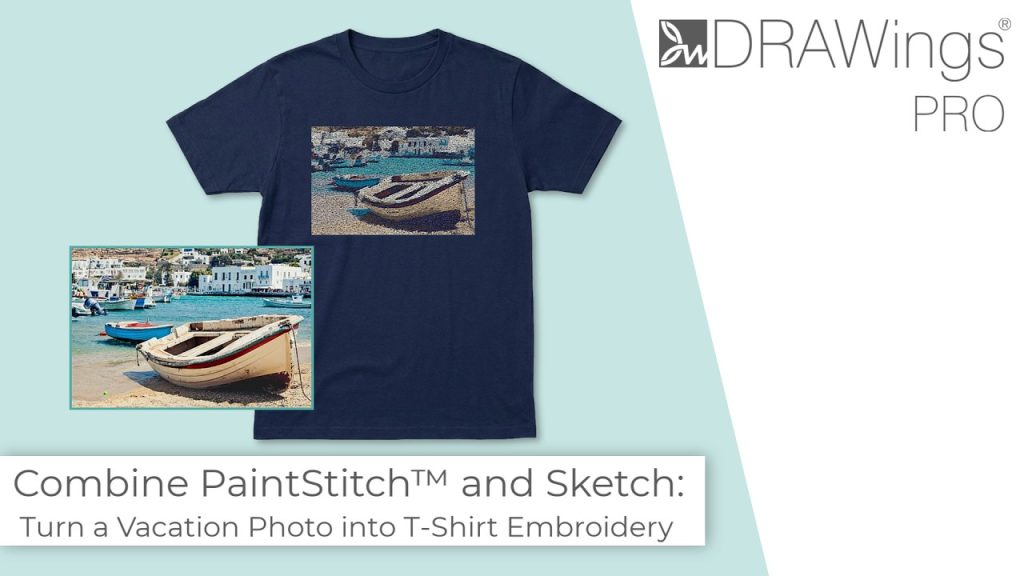
Layering script text over a bold collegiate letter is a staple in team apparel, varsity jackets, and custom fleece.How to Embroider a Photo onto a T-Shirt with PaintStitch™ and Sketch
A favorite vacation photo does not have to stay on your phone or disappear into a folder. With DRAWings PRO embroidery software, you can turn a photo into an embroidery design and stitch it onto a T-shirt as a wearable keepsake.