How to Convert Any Design into a Redwork Embroidery Design
Redwork designs are traditionally created with red running stitches on white fabric. In DRAWings PRO XII, converting an existing design to Redwork is a simple, one-step process. This conversion strips away fills and creates a lightweight embroidery design by retaining only the outlines.
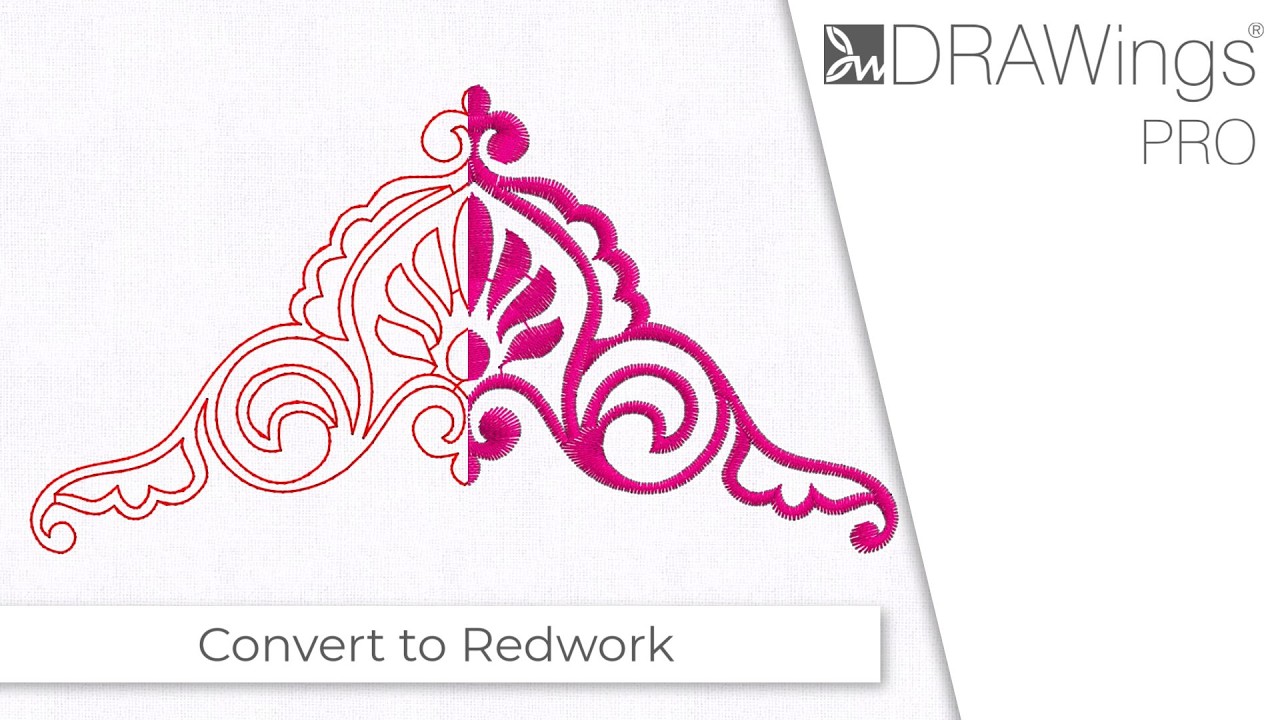
Here is how you can easily transform your artwork into a Redwork design.
Method 1: Using the Right-Click Menu
- Open your workspace and select the design or the specific portion of the design you want to convert.
- Right-click directly on your selection.
- Click on Convert to redwork from the drop-down context menu.
Method 2: Using the Horizontal Toolbar
- Select the design or the specific portion of the design you wish to modify.
- Locate the Convert icon in the horizontal toolbar at the top of your screen.
- Click the icon to apply the Redwork conversion instantly.
Useful Tips for Customizing Your Redwork
Tip 1: Customize Your Colors Despite the traditional name, your stitch color is not limited to red in DRAWings PRO XII. Once you have created the initial Redwork design, you can easily change the thread color by editing the Outline color of the design in your color palette.
Tip 2: Understand Stitch Passes For consistency and structural integrity, every part of a generated Redwork design will automatically be stitched with the exact same number of passes.
Tip 3: Experiment with Stitch Styles You do not have to stick to a standard running stitch. You can easily customize the final look and texture of your Redwork by applying different Stitch styles to your newly created outlines via the properties panel.
DRAWings PRO Help Group
Happy crafting and don’t forget to share your creations with us in the
DRAWings PRO Help Group!
Related posts




Projects
How to Modify Built-In Fonts into Custom Designs: Dripping Halloween Lettering
Every embroidery program ships with fonts that are already digitized. They stitch cleanly, and they are also the same fonts everyone else has.Digitizing a Knockout Layered Varsity Monogram with Nested Script Lettering
Layering script text over a bold collegiate letter is a staple in team apparel, varsity jackets, and custom fleece.How to Embroider a Photo onto a T-Shirt with PaintStitch™ and Sketch
A favorite vacation photo does not have to stay on your phone or disappear into a folder. With DRAWings PRO embroidery software, you can turn a photo into an embroidery design and stitch it onto a T-shirt as a wearable keepsake.