How to Create and Manage Clone Objects
Cloned objects are a powerful feature in DRAWings PRO XII that allows you to create a group of linked copies derived from an original object. Unlike standard duplicates, when you edit the shape of one clone, all other objects in that clone group are updated simultaneously. This is ideal for creating symmetrical designs and repeating patterns.
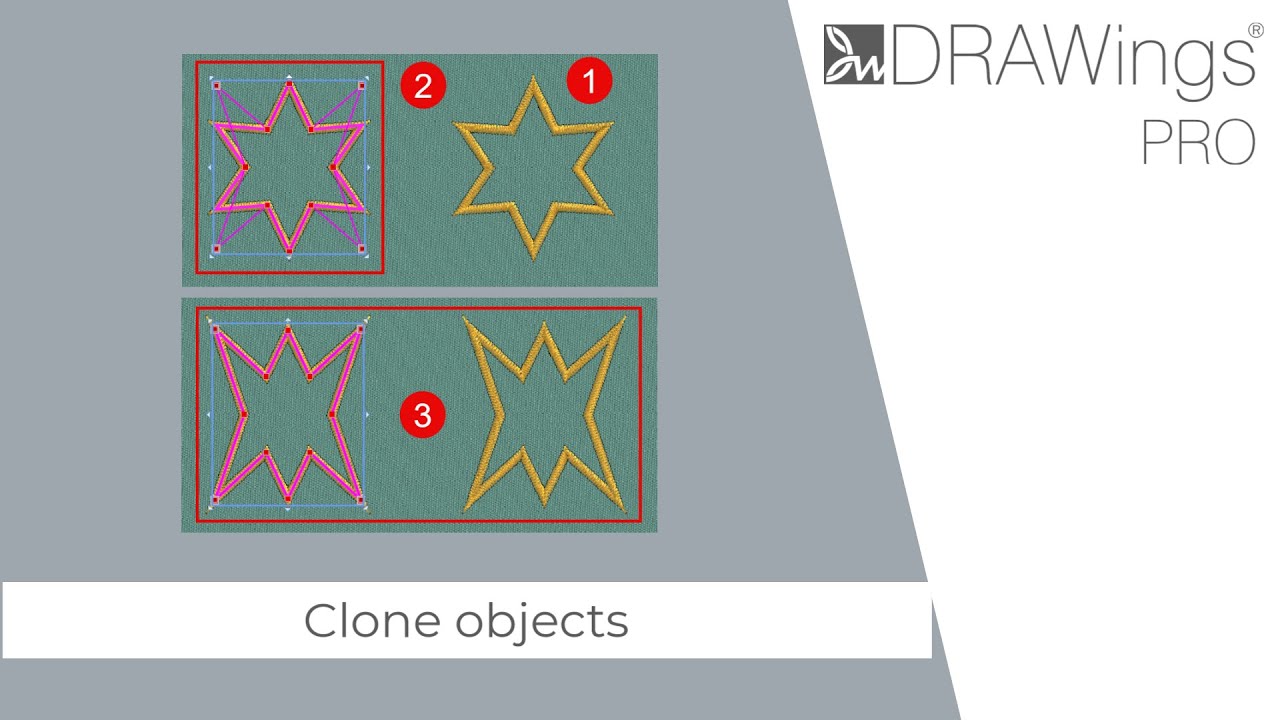
Follow the steps below to learn how to create, edit, and manage cloned objects.
1. Enabling Clone Mode
Before creating copies, you must tell the software to treat new duplicates as clones rather than standard independent objects.
- Locate the “Add new object as clones” option in the toolbar or properties panel.
- Check the box to turn this option ON.
- Note: As long as this box is checked, any new copy you create will be linked to the original as a clone.
2. Creating Clones
Once the option is enabled, you can create your clones using the duplication shortcut.
- Select the object(s) you wish to clone.
- Left-click and drag the object as if you are moving it.
- While holding the mouse button down, press the D key on your keyboard once.
- Release the mouse button to drop the duplicate.
- Repeat this process to create as many clones as required.
3. Editing Clone Shapes
The primary benefit of cloning is synchronized editing.
- Select any single object within the clone group.
- Activate the Edit Shape Nodes tool.
- Modify the shape (move nodes, change curves, etc.).
- Observe that all other clones update instantly to match the changes.
4. Managing Clones: Selecting and Detaching
You can manage clone groups using the right-click context menu.
To Select All Clones: If you need to move or transform the entire group at once:
- Right-click on any one of the cloned objects.
- From the submenu, choose the option to Select all clones.
To Detach a Clone: If you want to modify one specific object without affecting the others (e.g., the center object of a flower pattern):
- Right-click on the specific clone you want to separate.
- Select the option to Detach the clone.
- This object is now independent. If you edit its shape, the other clones will not change. Conversely, if you edit the group, this detached object will remain untouched.
5. Disabling Clone Mode
To return to creating standard, independent copies:
- Uncheck the “Add new object as clones” option.
- Any copies created after this point will be standard objects and will not be grouped with previous clones.
- Note: Objects created while the box was checked will remain as clones until manually detached.
💡 Useful Tips
- Pattern Creation: Clones are the most efficient way to create mandalas, floral arrangements, or geometric patterns where uniformity is required.
- Workflow Efficiency: Always double-check if the “Add new object as clones” box is checked before mass-duplicating. If you forget to check it, you will have to edit every object individually later.
- Visual Cues: When dragging to create a copy, pressing the D key is the trigger. Ensure you press the key before releasing the mouse button to ensure the duplication occurs.
DRAWings PRO Help Group
Happy crafting and don’t forget to share your creations with us in the
DRAWings PRO Help Group!
Related posts




Projects
How to Modify Built-In Fonts into Custom Designs: Dripping Halloween Lettering
Every embroidery program ships with fonts that are already digitized. They stitch cleanly, and they are also the same fonts everyone else has.Digitizing a Knockout Layered Varsity Monogram with Nested Script Lettering
Layering script text over a bold collegiate letter is a staple in team apparel, varsity jackets, and custom fleece.How to Embroider a Photo onto a T-Shirt with PaintStitch™ and Sketch
A favorite vacation photo does not have to stay on your phone or disappear into a folder. With DRAWings PRO embroidery software, you can turn a photo into an embroidery design and stitch it onto a T-shirt as a wearable keepsake.