How to Import and Convert Vector Graphics for Embroidery
DRAWings® PRO XII offers a powerful and incredibly fast way to create embroidery designs directly from artwork.

Knowledge base for DRAWings Embroidery Software

DRAWings® PRO XII offers a powerful and incredibly fast way to create embroidery designs directly from artwork.

In DRAWings PRO XII, any new object you create, such as a shape or text, is automatically assigned a default color style (e.g., a white fill and a black outline).

This guide walks through editing text objects in DRAWings PRO XII, from basic positioning to advanced shape editing using Convert to Curves and the Node Editor.
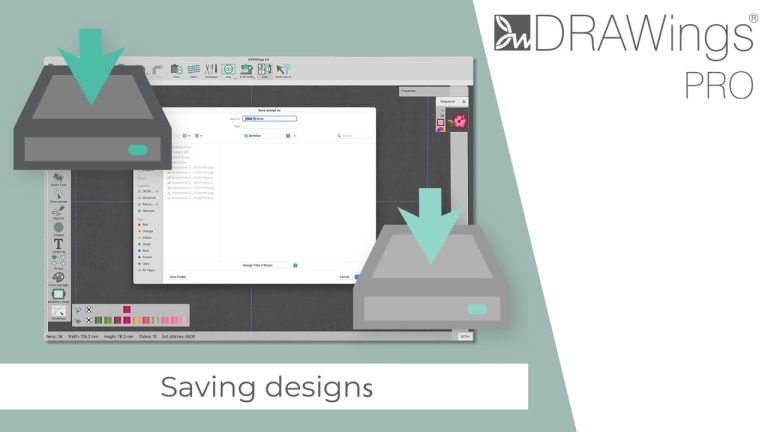
Understanding the difference between saving your editable project file and exporting a stitch-ready machine file is crucial for a smooth workflow.

DRAWings® PRO XII is a powerful, multi-functional software designed for a wide range of creative applications, including embroidery, graphic design, cutting, stencils, crystals, and painting.
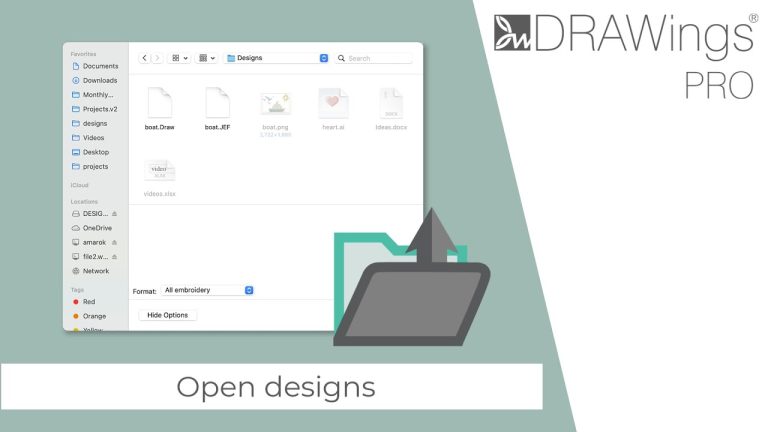
This guide outlines the various methods you can use to open native .DRAW files, as well as import other supported embroidery and artwork file types into your workspace.

This guide will walk you through the initial steps of importing a bitmap image into your project.

This guide will walk you through the various methods for creating a new design project in DRAWings PRO XII.

This guide will walk you through the process of importing a bitmap image (like a .JPG, .PNG, or .BMP) and converting it into an embroidery design using the powerful Auto-Digitize (Trace) feature in DRAWings PRO XII. Step 1: Open and Select Your Image First, you need to bring your image into the software. 💡 Useful…