
In this section you will find useful Support information for various issues that you might experienced while using DRAWings or Wings’ modular software. If the solution to your problem is not listed, please feel free to contact your Dealer or us directly.
List of common issues
Click on the issue you want, to view the answer. If you want you can search our knowledge base for an answer
Please send us the key form of your key in order to check its status and inform you what abilities are included in your installation.
You can send us the key form from Wings' modular by following the steps below:
- Run Wings' modular software
- Click on "Tools"
- Click on "Option"
- Click on "Key" Tab
- Click on "Keyform" button (down right)
- A new window will come up with the key form information.
- Click on "File" - "Save As" option and save the key form.
- Then send it by e-mail.
The "System Information" file can be found under "Start > All Programs > Accessories > System Tools > System Information".
Save the System Information as ".NFO" file (from "File >Save" menu option) and send it to us by e-mail.
Keep in mind that the size of the .NFO file should be around 1 MB.
If you get CBU Failure or error # 80004002 means that the software cannot find the key.
- Check if the USB dongle is plugged on the USB port of your computer.
- If still the software shows the same error message, then un-plug the key, wait for 10 seconds and plug it in another USB port.
- Download the latest drivers for the key (if the Serial number of your USB key starts from 50-0... and it has a metal housing) from Marx website: https://www.marx.com/downloads/drivers-and-diagnostic/cbusetup-1-7-13-321.zip and install them.
Of course the USB key is an electronic device and it might be burned. In this case we will replace it.
To find the Event Log (under Windows XP):
- click on "Start" and open the "Control panel"
- open "Administrative tools" (if this is not visible, from the left side of the window click on the "Switch to Classic View")
- from "Administrative tools" open "Event Viewer"
- at the left side of "Event Viewer" right-click on "DRAWings" book and select "Save Log file as" from the right click menu
To find the Event Log (under Windows Vista or 7 ):
- click on "Start" and open the "Control panel"
- open "Administrative tools"
- from "Administrative tools" open "Event Viewer"
- in the warning message that appears click on the "Continue" button
- on the left side of "Event Viewer" double-click on "Applications and Services Logs"
- right-click on the "DRAWings" option (on the left side) and select "Save event as"
- save the Event Log file –as *.evtx file - on his hard disk and send the file to us by email.
To find the Event Log (under Windows 8, 10):
- Press [Win + S] from keyboard. The win key is the one in the following image
- In the following toolbar which will be seen on the right side of the screen, type “Event”. Windows 8 will suggest “View Event Logs”. Click on this option.
- On the left side of "Event Viewer" double-click on "Applications and Services Logs"
- right-click on the <> option (on the left side) and select <>
- save the Event Log file –as *.evtx file - on his hard disk and send the file to us by email
The serial number can be found in “Help >About” option of DRAWings software and it should start with “50-00…” or “60-00…”.
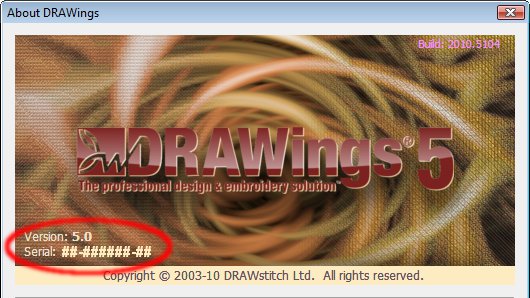
When launching DRAWings after installation or re-insertion of the USB Dongle, a screen displays for a brief moment, followed by this error message:
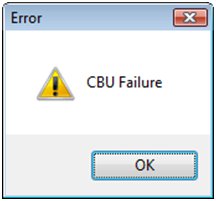
This error is a result of a loose or improperly connected Dongle:
- Close the error message.
- Remove the Dongle, wait 10 seconds, and re-insert it, ensuring that it is securely connected.
- Load DRAWings once more.
Sometimes problems appear during installation procedure. If any problem appear you have to try the following.
- Make sure that you have administrative right on your PC in order to be able to install the software.
- Disable your antivirus or any other security software ONLY during the installation and turn them back on, once it is finished. DRAWings installation does not include any malicious software.
- Make sure that you graphics card meets system requirements, because otherwise DRAWings might not work properly.
If the Dongle is removed when using DRAWings, the application will shut down and the following error message is generated:
“Visual C++ Runtime Error”
Re-insert the Dongle securely and re-start DRAWings.
DRAWings has an extra security feature that handles exceptions that might occur while working with complex designs. This feature allows you to undo your last change in the design that made the system unstable and continue from that point.
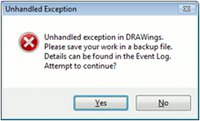
Whenever the above image appears an Unhandled Exception was occurred in the system. In order to continue working in DRAWings you have to click on 'Yes' button. The system will become stable again. It is proposed, when an Exception occurs, to save changes in the current design, restart the software and then continue working with the design.
If you click the 'No' button the System will crash!
DRAWings is a demanding software in 3D graphics card. If the PC you have installed the software does not meet the Minimum System requirements, the software might not work properly.
If the following error appears when you try to start the software, then the problem is located on the Graphics card of your system or to the 3D settings of the software.
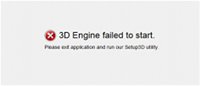
To overcome this issue please try the following:
- Download and install the latest drivers of the Graphics card and try to start DRAWings.
- Try to re-install the DirectX 9.0C from the Directx9 folder that you will find inside the installation CD of DRAWings. Run dxsetup.exe and follow the installation. Once it is finished try once more to open DRAWings.
- Open Setup 3D from Start>All Programs>DRAWings, set the options as they are shown in the screen capture below and select Save settings button.
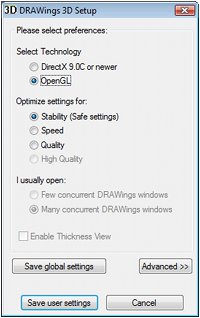
- Start DRAWings and check if it is working properly. If this does not work open the Setup 3D and set the options as they were initially (as it shown in the screen capture below), and select Save settings.
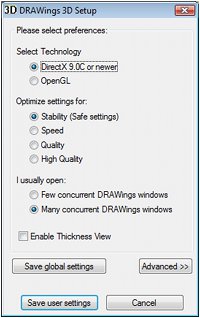
- Try to open DRAWings once more.
- If none of the above worked the problem is located in your Graphics card. It might have less than 64MB of Ram, or have poor 3D capabilities (usually onboard graphics cards). To fix that you will have to change it with any NVIDIA or ATI graphics card is available on the market. The software requires a good graphics card to work properly.
Information on how to proceed with checking the Video memory of the card, updating video drivers or another way to install the latest DirectX, you will find below.
If you have not registered your software during the installation process you can do it any other time you want by following the steps below:
Register DRAWings 5
- Make sure that your USB Security key is pluged on the PC.
- Select "Start > All Programs >DRAWings 5 >Register DRAWings 5" option.
- The Registration information dialog appears
- Fill in the requested information
- Make sure you are connected to the internet and click on the "Register" button
- The Registration process will take place automatically and you will be able to access the Members’ area of our website immediately.
Register DRAWings 4 or earlier version
- Make sure that your USB Security key is plug on the PC.
- Select "Start > All Programs >DRAWings 4 >Register DRAWings 4" option.
- The Registration information dialog appears
- Fill in the requested information
- Make sure you are connected to the internet and click on the "Register" button
- Your default email client software will open with the information we need to register your software included. Send the email to us and you will be able to access the members’ area within two days. If you want to send the information from a different email client (yahoo mail, hotmail, gmail etc.) just "Copy" and "Paste" the "Registration information" to the other email client and send the email in the address that is shown on the "To" field of your default email client that opened initially.
Register Wings’ modular 5
- Make sure that your USB Security key is pluged on the PC.
- Select "Start > All Programs >Wings’ modular v5.00 >Register Wings’ modular 5" option.
- The Registration information dialog appears
- Fill in the requested information
- Make sure you are connected to the internet and click on the "Register" button.
- The Registration process will take place automatically and you will be able to access the Members’ area of Wings’ modular 5 website immediately.
Register Wings’ modular 2.50 or earlier version
- Make sure that your USB Security key is plug on the PC.
- Select "Start > All Programs >Wings Systems>Register modular 2" option.
- The Registration information dialog appears
- Fill in the requested information
- Make sure you are connected to the internet and click on the "Register" button
- Your default email client software will open with the information we need to register your software, included. Send the email to us and you will be able to access the members’ area within two days. If you want to send the information from a different email client (yahoo mail, hotmail, gmail etc.) just "Copy" and "Paste" the "Registration information" to the other email client and send the email in the address that is shown on the "To" field of your default email client that opened initially.
IMPRTANT: If you do not have a direct internet connection, please save all the information listed in the "Registration information" dialog (make sure that you have included the "Serial number" of your USB KEY) in a text file and send the file to us with an email from a different pc or when you will be connected to the internet.
The two most common video chipsets are ATI and NVIDIA. Please visit one of the following web sites and obtain the latest driver for your card.
http://www.ati.com/
http://www.nvidia.com/
If your video card does not use either of these chipsets, visit the video card manufacturer's web site for the latest driver.
If you have a laptop you need to search for video card drivers from the laptop manufacturer’s web site.
DirectX can be downloaded from the Windows Update site, or from http://www.microsoft.com/directx. After installing DirectX, make sure that acceleration is enabled. To verify this, do the following:
- Click Start, Run.
- Type dxdiag and click OK.
- Click on the Display tab.
All three DirectX Features should indicate Enabled beside each feature. If not, click the Enable button beside the ones that are disabled. If the buttons are disabled, there is a problem with DirectX. Consult the Microsoft knowledge base for assistance in troubleshooting DirectX, or click on the More Help tab and click on the Troubleshoot button.
Direct X was not installed, during the installation of the software
In this case:
- Insert the installation CD of DRAWings or Wings' modular version 5 software in the CD-Rom.
- Double click on "My computer" Icon.
- Right click on "CD-Rom" icon and select the option "Explore".
- Double click on " directx9c" folder.
- Then double click on " DXSETUP.exe" file to start the installation of DirectX.
- Follow the instructions and finish the installation.
- Then try to run DRAWings and Wings' modular version 5 software.
To fix this issue you have to Reset the toolbars/Roll-ups to its original position while the software is loading.
Please follow the steps below:
- Close Wings' modular software.
- keep pressed the "Shift" key from the keyboard.
- Right click on the Wings' modular icon and select "Open" and do not release the Shift key until Wings' modular software will come up.
With this way the Roll ups and the toolbars of the software will be placed in their original position and they will be seen on the screen.
Most probably the reason why you cannot log into the members’ area is because you have not registered your license-software.
Please look for "How can I register my license - Software?" topic in the Knowledge base, follow the instructions and you will be able to register your software and access the Members’ area.
A Key Form (keyform) is always needed whenever you contact us for Support. Therefore do not forget to include one in your email.
You can send us the key form from DRAWings by following the steps below:
- Run DRAWings software
- Click on "Tools" menu, in the "stitch" part of DRAWings software
- Click on "Security keys"
- Click on "Keyform" button (top right)
- A new window will come up with the key form information.
- Click on "File" - "Save As" option and save the key form.
- Then send it by e-mail together with your questions.